SessionGlance Complete User Guide
This guide walks through the full SessionGlance workflow: logging in, recording, completing the General Assessment of Functioning, and reviewing/editing your generated drafts after the session.
Program Overview Video
Embedded walkthroughThis overview video explains what you will see in the portal after you upload a recording, submit the assessment, and open the generated drafts.
Before the Session
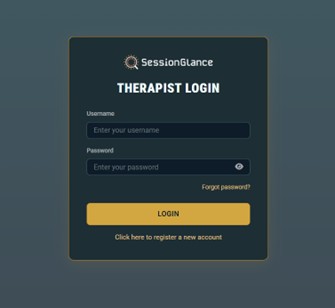
Log in and prepare to record1) Log in to the Therapist Portal
- Navigate to the SessionGlance website.
- Select the USER PORTAL link.
- Enter your username and password to sign in.
2) Understand Your Dashboards
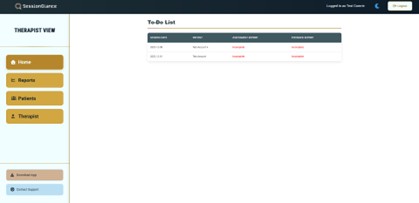
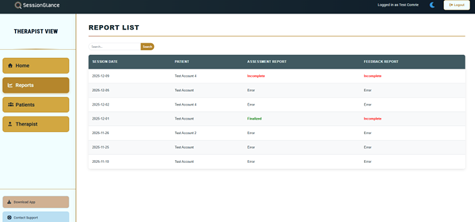
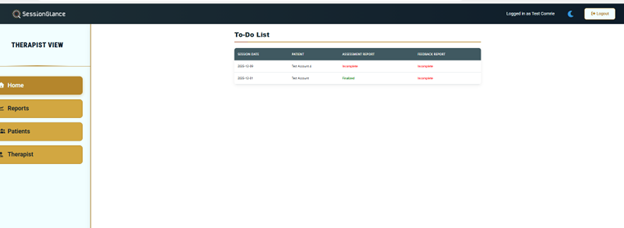
After login, your To-Do List Dashboard helps you track reports that need attention. Your Reports Dashboard organizes drafts by status.
- Pending — uploaded, still processing.
- Error — could not process; use Contact Support.
- Incomplete — drafts are ready for review/editing.
- Finalized — completed, ready to download.
During the Session
Record → Stop → Upload3) Begin a New Recording
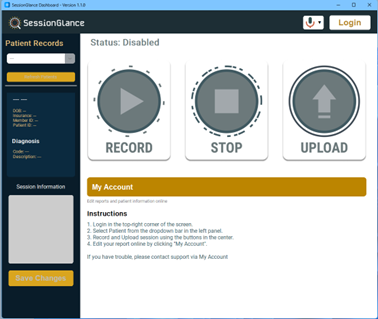
Recording steps
- Start your telehealth session as usual.
- Open the SessionGlance desktop app.
- Select the correct patient.
- Click Record.
- When finished, click Stop.
- Click Submit / Upload Recording.
What happens after upload
- SessionGlance begins converting the audio file.
- You’ll see a confirmation when upload is accepted (e.g., “session successfully uploaded”).
- While processing, SessionGlance launches the General Assessment of Functioning.
General Assessment of Functioning
1–10 scale4) Friendships & Family (Non-Romantic)
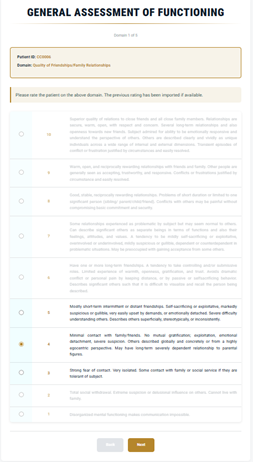
- High: stable relationships, warm communication, safety and mutual connection.
- Mid: shorter/independent patterns, possible self-sacrifice/exploitive dynamics, inconsistent safety/support.
- Low: difficulty forming/sustaining meaningful relationships; fragmented/disorganized relational experience.
5) Romantic Relationship Functioning
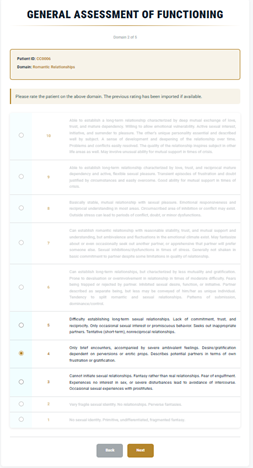
- High: “strong mature love,” emotional vulnerability, closeness with appropriate pullback.
- Mid: partnerships may exist, but needs may not be fully met.
- Low: persistent difficulty developing/sustaining/engaging meaningfully in romantic relationships.
6) Tolerance of Psychological Distress
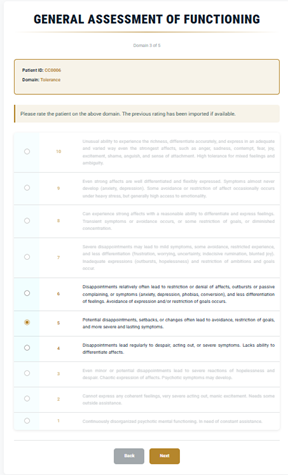
- Evaluate whether distress leads to withdrawal/avoidance/collapse vs. engagement and reflection.
- High: stays engaged despite discomfort.
- Low: disengages; difficulty tolerating distress.
7) Insight
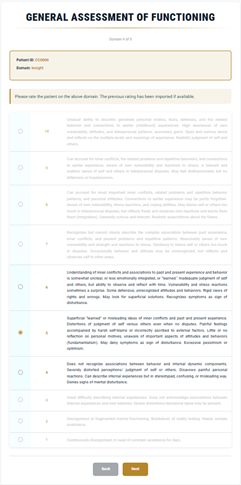
- High: coherent identity; consistent sense of self across contexts.
- Low: doubt/uncertainty; reduced identity clarity; inconsistency across contexts.
- Consider minimal or gradual progress, even if not dramatic.
8) Problem Solving
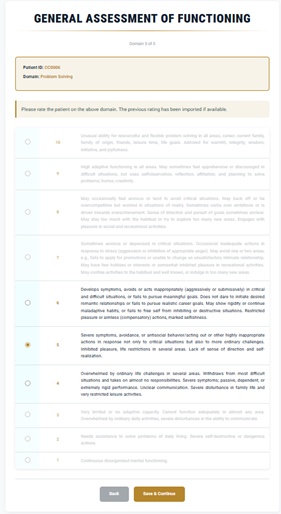
- Assess ability to identify thoughts/feelings under stress and use available resources effectively.
- Note shutdown/avoidance/overwhelm; need for significant support; risk behavior if present.
- High: effective problem solving under stress.
- Low: impaired problem solving.
9) Treatment Progress Since Last Session
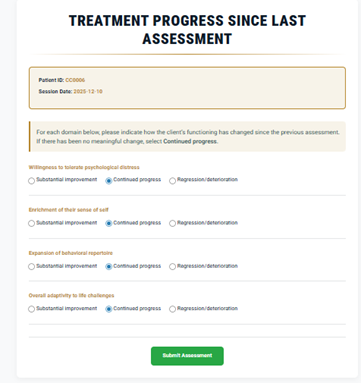
Willingness to tolerate distress
- Improvement: increased willingness to discuss challenges; deeper engagement.
- Regression: avoidance of affect-laden topics; unwillingness to engage distressing material.
Enrichment of sense of self
- Improvement: stable self-concept; alignment with identity.
- Regression: increased uncertainty; fear about being true self.
Expansion of behavioral repertoire
- Improvement: tries new behaviors; broader engagement.
- Regression: rigid/repetitive patterns; limited engagement with outside world.
10) Submit the Assessment
- Select Submit Assessment.
- This enables SessionGlance to generate:
- 96130 assessment draft
- Client Feedback Report
- Draft Psychotherapy Note
- These become available after processing completes.
After the Session
Open “Incomplete” to review drafts11) Identify the Newly Created Report
After processing, a new report will appear labeled Incomplete. This indicates that drafts are ready for clinician review.
12) Review & Edit the 96130 Assessment Draft
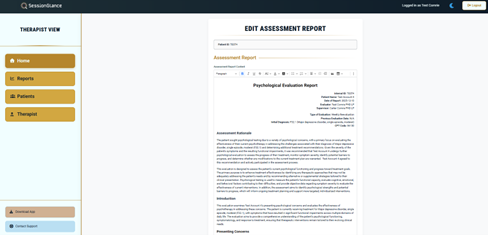
- Review diagnosis, symptom description, and assessment battery/rationale.
- Use the bolded summary statements as clinically relevant anchors tied to your ratings.
- Edit for accuracy, remove irrelevant content, and tailor to your formulation.
13) Complete the AMA-Required 96130 Elements
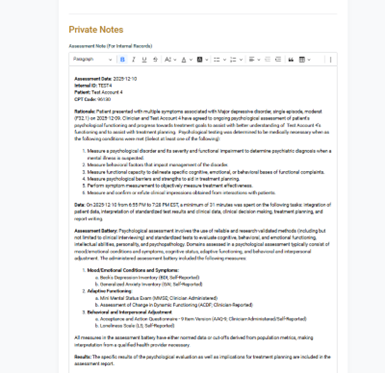
- Scroll to the section requiring AMA item selection.
- Select the item(s) that apply to your assessment.
- Confirm at least one selection before finalizing.
14) Review the Client Feedback Report
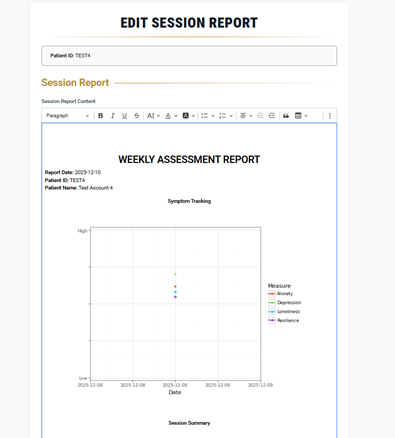
- Review narrative themes, intervention summaries, and reflection questions.
- Edit all highlighted text and remove anything that does not apply.
- Ensure the final report is clear, accurate, and aligned with your clinical intent.
15) Review the Draft Psychotherapy Note
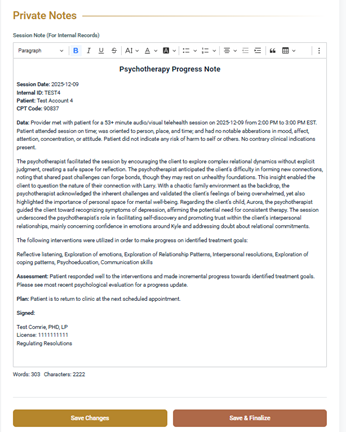
- Read carefully and edit for accuracy.
- Finalize the note or copy into your EHR as appropriate.
- The note is fully editable.
Finish Strong: Final Checklist
- 96130 draft reviewed and edited for accuracy.
- At least one AMA-required item selected.
- Client Feedback Report reviewed and highlighted content edited.
- Psychotherapy note reviewed and edited before EHR entry.
- If a report shows Error, use Contact Support.